
LinkedIn guide
15 LinkedIn Carousel Examples, Slide by Slide
Updated · By the Postora team
The LinkedIn carousels that work best follow a clear structure: a cover that promises one result, one point per slide, and a closing slide with a single next step. Below are 15 example structures, written out slide by slide, for how-tos, checklists, case studies, opinions, launches and hiring, each matched to a Postora template you can start from.
What makes a good LinkedIn carousel example
Look at enough carousels and the good ones share three traits. The cover is specific: it names who it is for and what they get. The middle moves forward on every slide, with no slide that repeats the last one. The ending asks for one thing, whether that is a comment, a save or a click.
The examples below are structures, not finished posts. Each lists what goes on every slide, so you can drop in your own topic, numbers and voice. All of them work at the standard LinkedIn carousel size of 1080 × 1350 px.
Teaching carousels: how-tos, checklists and explainers
1. The step-by-step walkthrough
For any task people want to finish: setting up a tool, preparing a pitch, cleaning up a profile.
- Cover: the result and how long it takes (“Ship your first newsletter in 45 minutes”).
- Slides 2–5: one step per slide, each starting with a verb.
- Final step: the hint that makes the whole thing stick.
- Closing: three next actions the reader can take today.
Template: Walkthrough.
2. The keep-this checklist
For reference material people save: a launch checklist, interview prep, a monthly finance review.
- Cover: say it is worth keeping and what it covers.
- Slides 2–3: the items, each with one line of detail.
- Slide 4: what to do and what to avoid, side by side.
- Slide 5: the three things to remember.
Template: Keep-this guide. For a bigger task split into before, during and after, try Stage-by-stage checklist.
3. The concept explainer
For one idea your audience keeps getting wrong: cash flow vs profit, what an API is, how equity vesting works.
- Cover: name the concept and promise it will finally make sense.
- Slide 2: the idea in plain words.
- Slide 3: how it works, step by step.
- Slide 4: a side-by-side comparison with what people confuse it with.
- Slide 5: a worked example with real numbers.
- Slides 6–7: a recap of the rules, then a closing question.
Template: Explain it simply.
4. The beginner traps
For people starting out in your field. Mistakes are easy to recognize, which makes this one shareable.
- Cover: who these traps are for.
- Slides 2–3: three traps per slide, each with its fix.
- Slide 4: the one habit that prevents most of them.
- Closing: offer a resource in exchange for a comment.
Template: Beginner traps.
5. The better swaps
For small habits with a better alternative: meeting habits, email phrasing, spreadsheet shortcuts.
- Cover: the area and the promise of an easier way.
- Slides 2–4: one swap per slide, “instead of this, try this”.
- Closing: invite readers to follow for more.
Template: Better swaps. The Résumé line rewrites template uses the same before-and-after idea for career content.
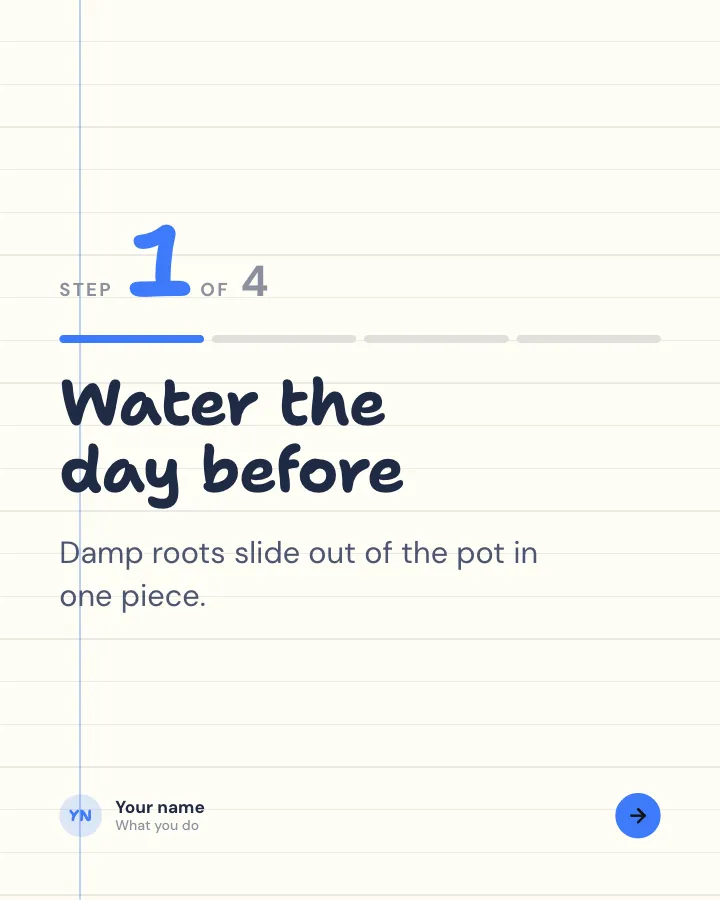
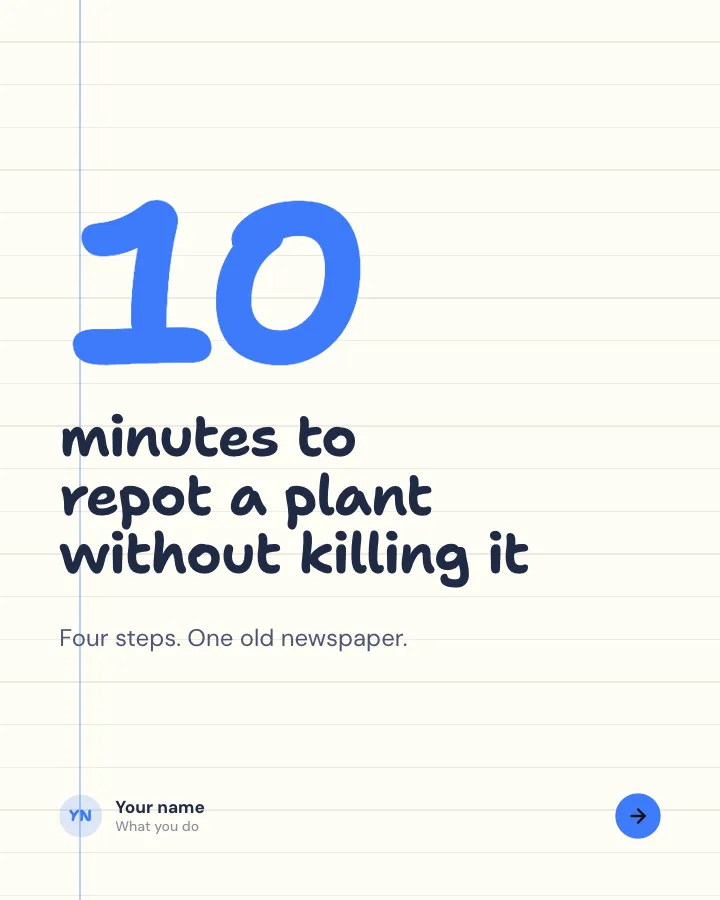
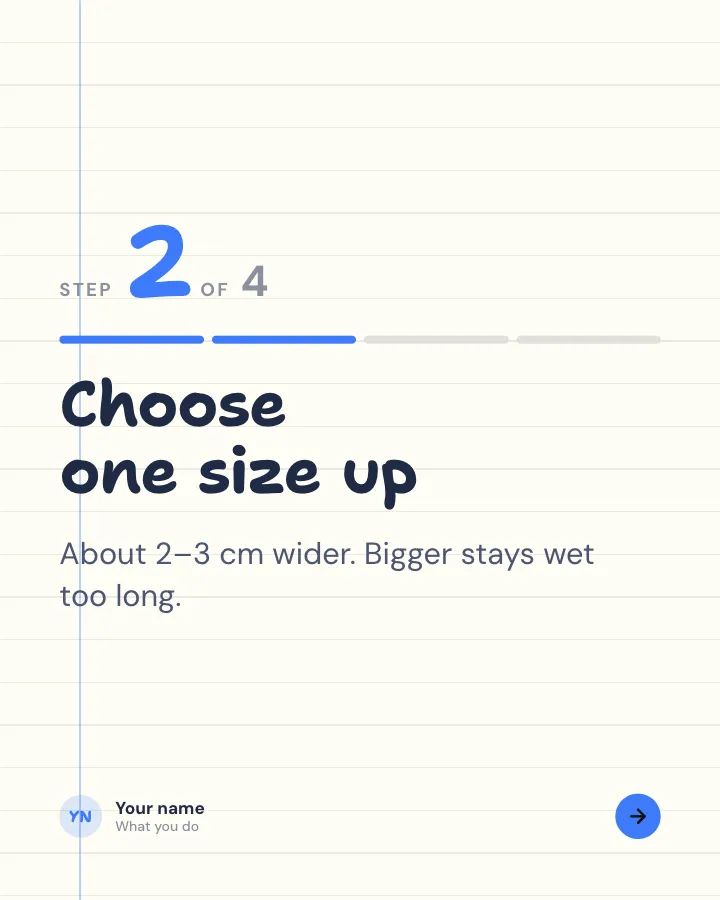
Walkthrough
6 slidesA task broken into clear steps, one per slide, ending with the hint that makes it work.
ExplainBe bookmarked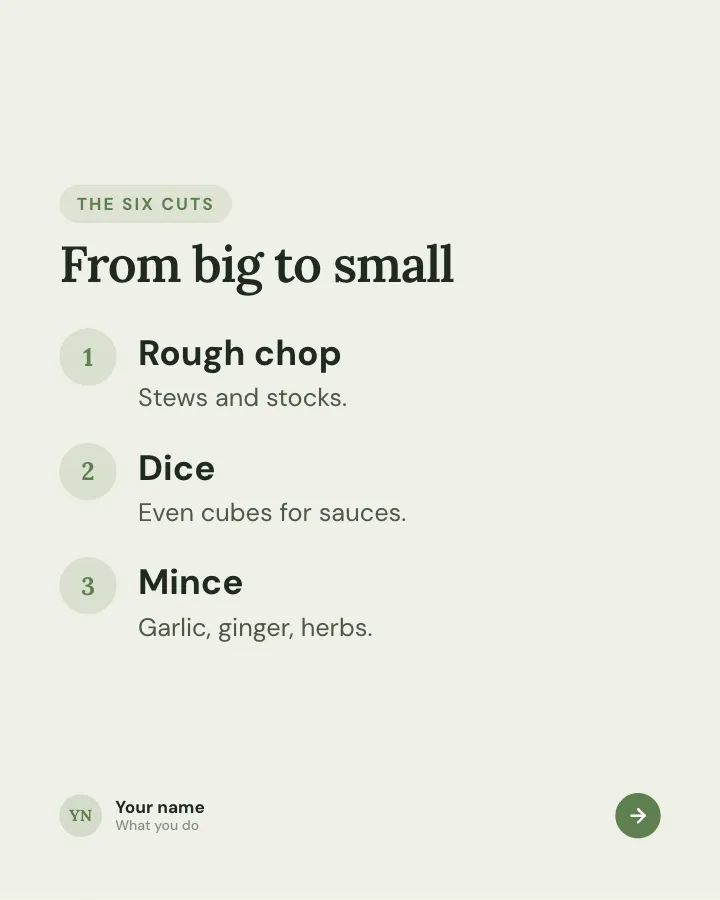
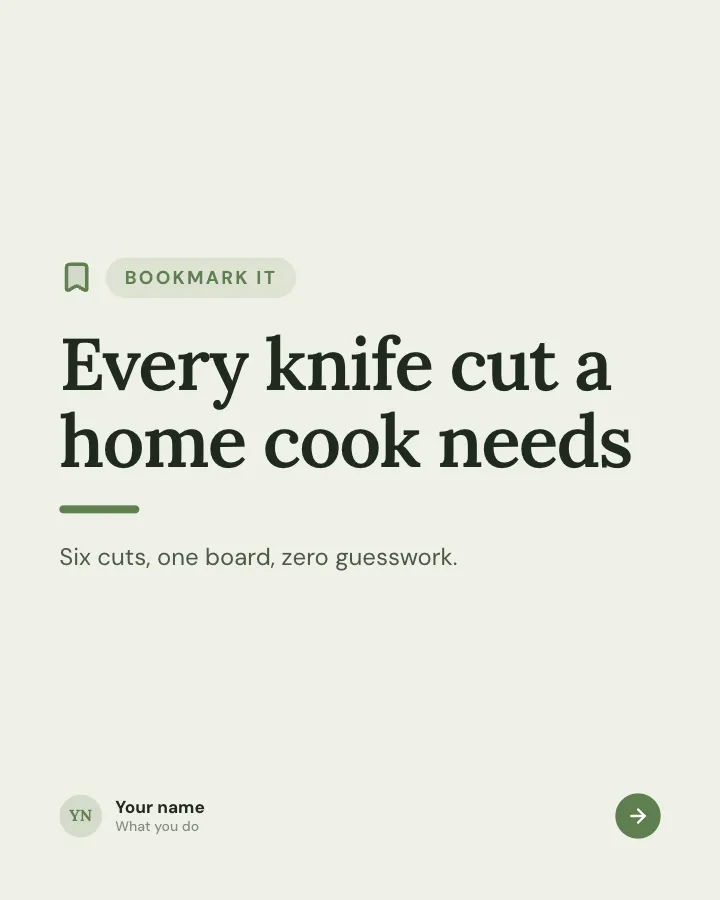
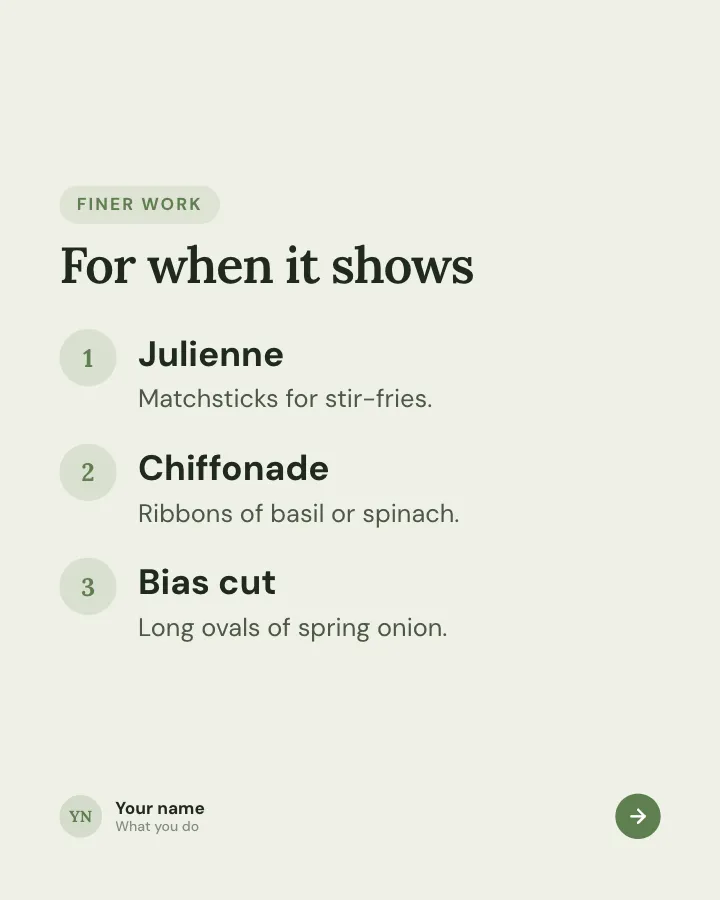
Keep-this guide
5 slidesA reference people will come back to: the essentials of one topic on a few dense slides.
Be bookmarkedExplain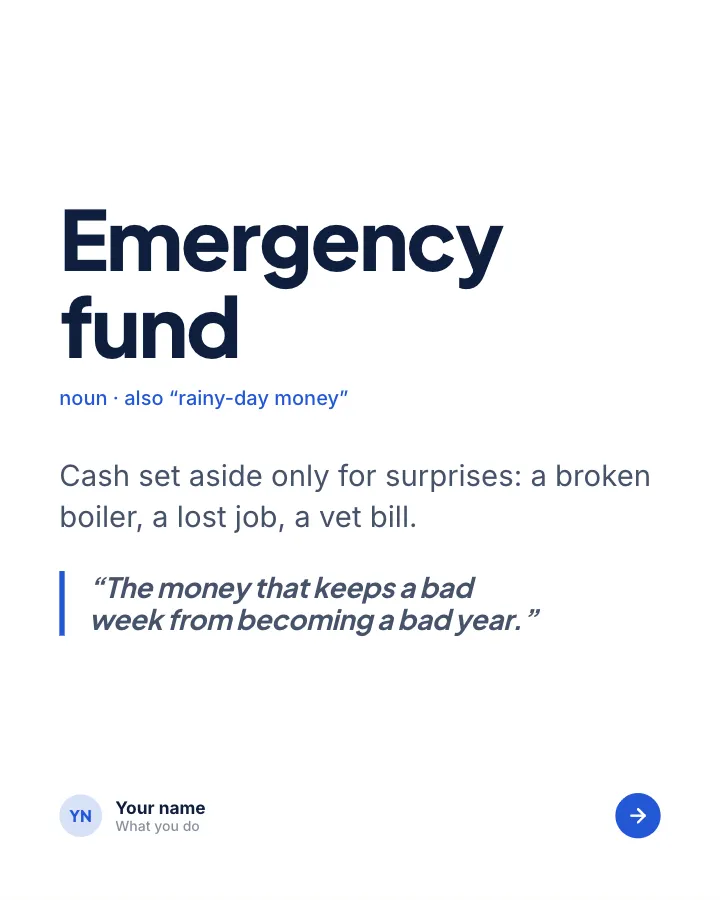

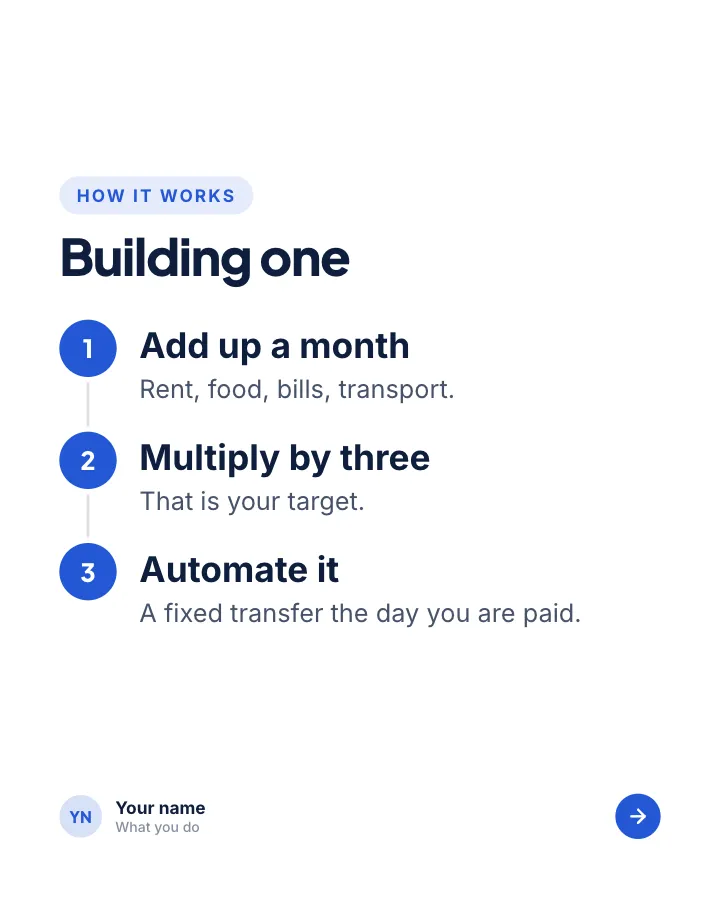
Explain it simply
7 slidesOne concept, unpacked for a beginner: the idea, how it works, a worked example and the rules to keep.
ExplainBe bookmarked
Proof carousels: case studies, results and lessons
6. The results breakdown
For agencies, consultants and freelancers who want to show how they work, not just say it.
- Cover: the outcome and the project in one line.
- Slide 2: the problem as the client saw it.
- Slide 3: what you did, as a short list.
- Slide 4: the results in numbers (only real figures you can stand behind).
- Slide 5: a line from the client, with permission.
- Closing: how to start a similar project.
Template: Results breakdown. For a version with a chart and a before-and-after slide, see Client win, in numbers (VIP).
7. The lessons learned
For anything you have been through: a launch, a year of freelancing, a failed project.
- Cover: how many lessons, and from what (“4 things a year of hiring taught me”).
- Slides 2–5: one lesson per slide, each with the moment you learned it.
- Closing: ask readers what they would add.
Template: What it taught me.
8. The progress update
For building in public: a product, a side business, a fitness or learning goal.
- Cover: which update this is and the headline number.
- Slide 2: the numbers for the period.
- Slide 3: what helped.
- Slide 4: what did not.
- Slide 5: the next goal.
- Closing: ask readers for advice.
Template: Progress log.
9. The teardown
For showing expertise by improving something concrete: a cold email, a landing page headline, a job ad. Use your own material or an invented one, never someone else’s without permission.
- Cover: the original, with the promise of a teardown.
- Slide 2: the original in full.
- Slide 3: what goes wrong, line by line.
- Slides 4–5: the rewrite, before and after, and the rules behind it.
- Closing: invite readers to share the worst example they have seen.
Template: Cold email teardown.
Opinion and story carousels
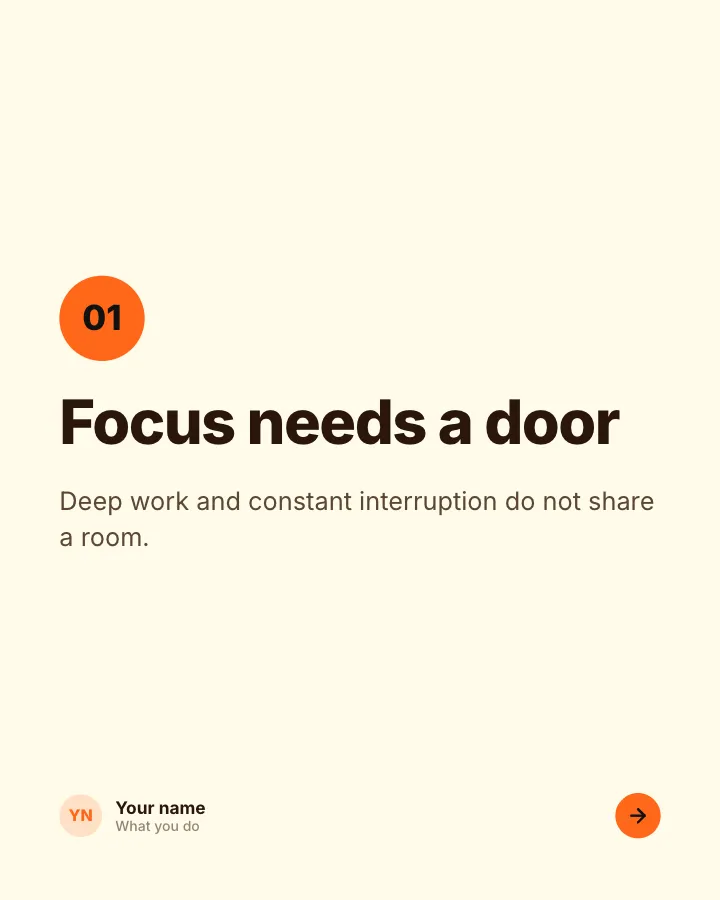
10. The strong opinion
For a position people in your field will want to argue with. The honest counter-argument slide is what makes it credible.
- Cover: the position, stated plainly.
- Slides 2–4: one reason per slide.
- Slide 5: the fairest counter-argument, answered.
- Closing: invite people to disagree in the comments.
Template: Strong opinion.
11. The myth check
For popular beliefs in your industry that do not hold up.
- Cover: the topic and a promise to sort belief from fact.
- Slides 2–5: one belief per slide, set against what is actually true.
- Closing: ask which belief readers used to hold.
Template: Belief check.
12. The origin story
For founders and career changers: how the company, product or new direction began.
- Cover: the hook of the story.
- Slide 2: the first scene.
- Slide 3: the hard part.
- Slide 4: the turn, in one line.
- Slide 5: what changed after.
- Slide 6: the lesson.
- Closing: ask readers about their own beginning.
Template: Origin story.
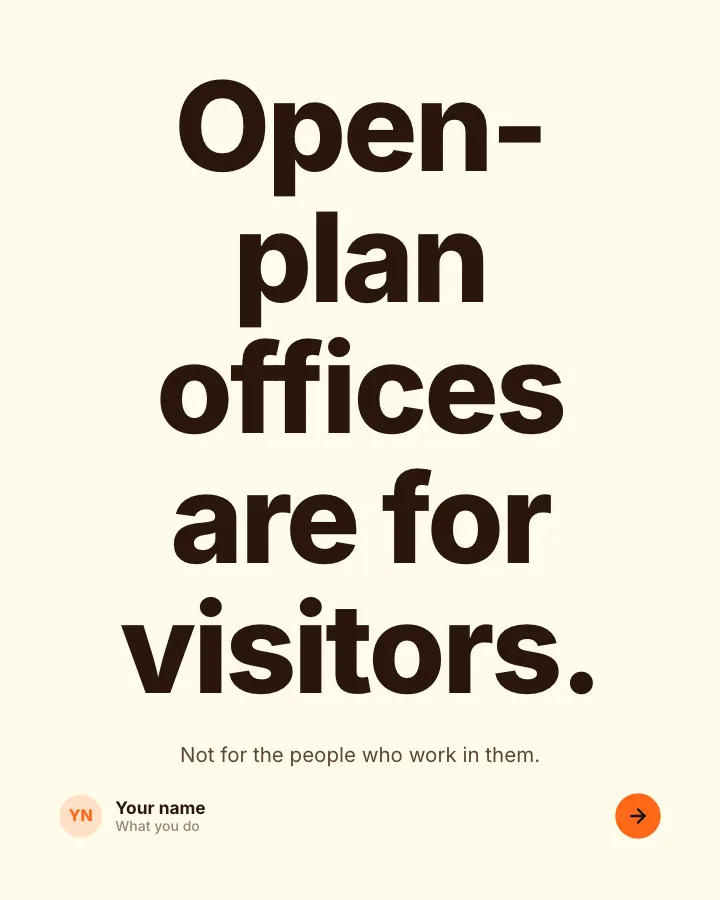
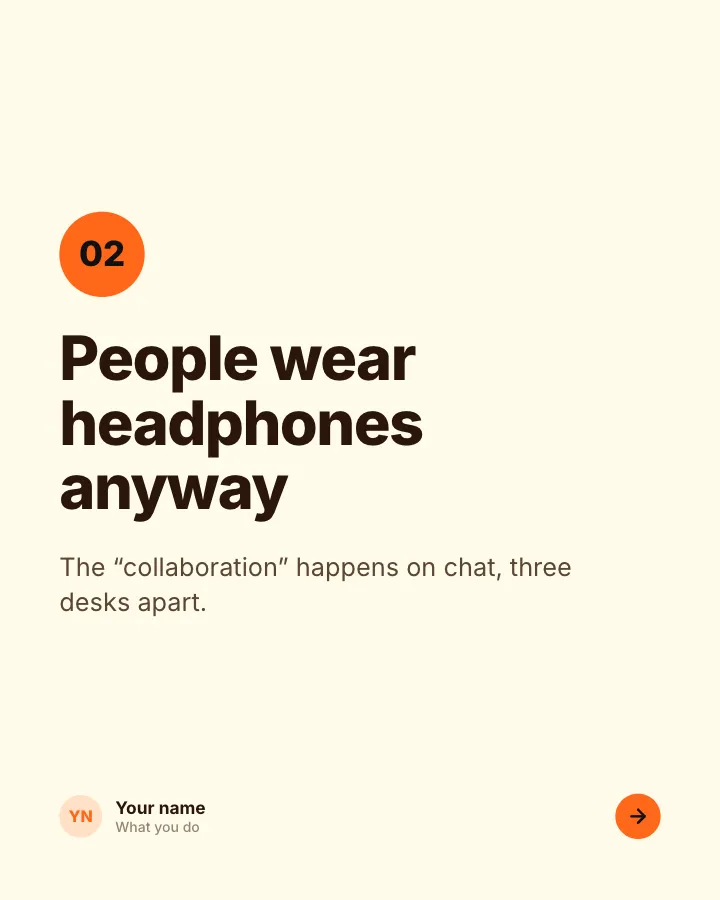
Strong opinion
6 slidesA clear position people can disagree with, the reasons for it and an open question.
Spark replies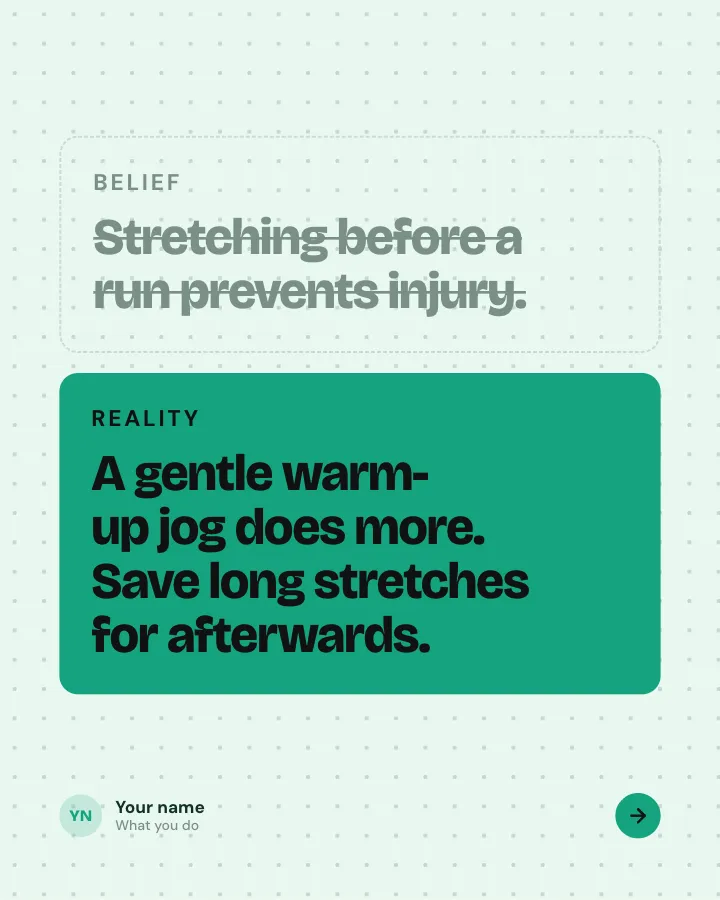

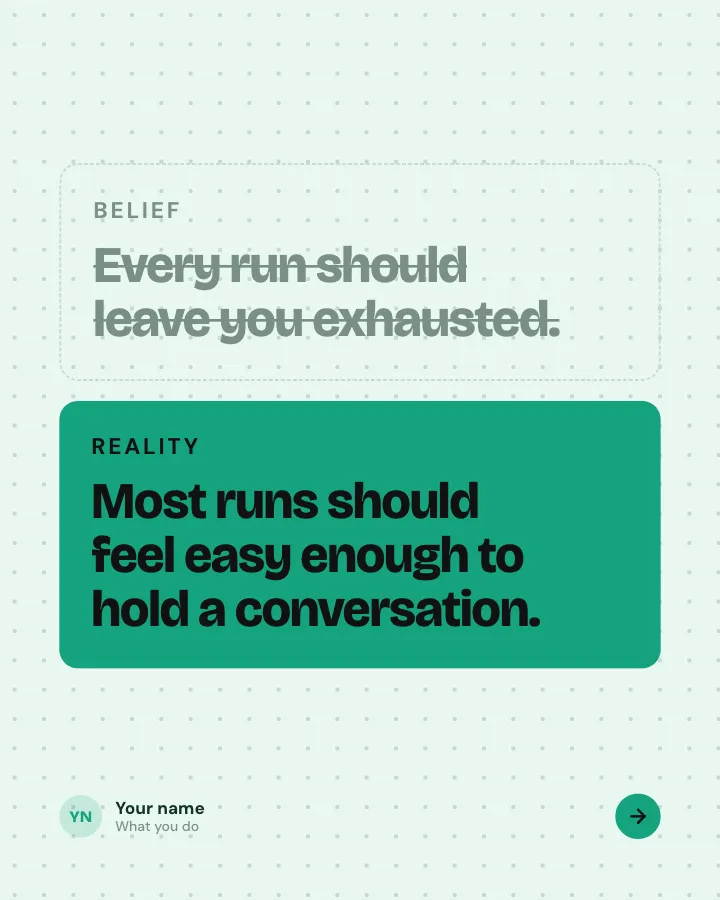
Belief check
6 slidesPopular beliefs about a topic, each set against what the evidence actually says.
ExplainSpark replies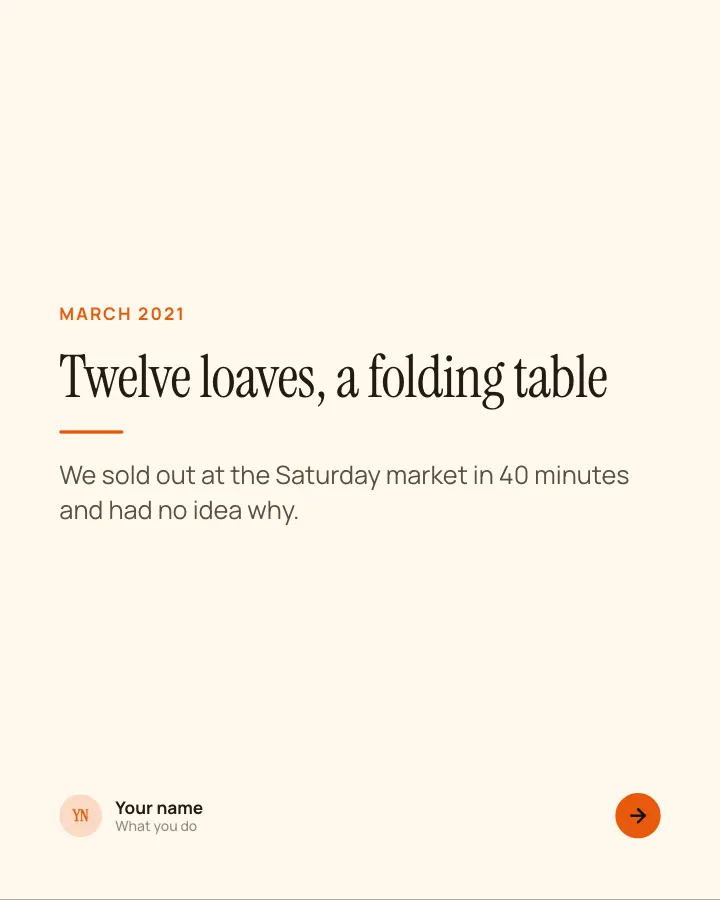
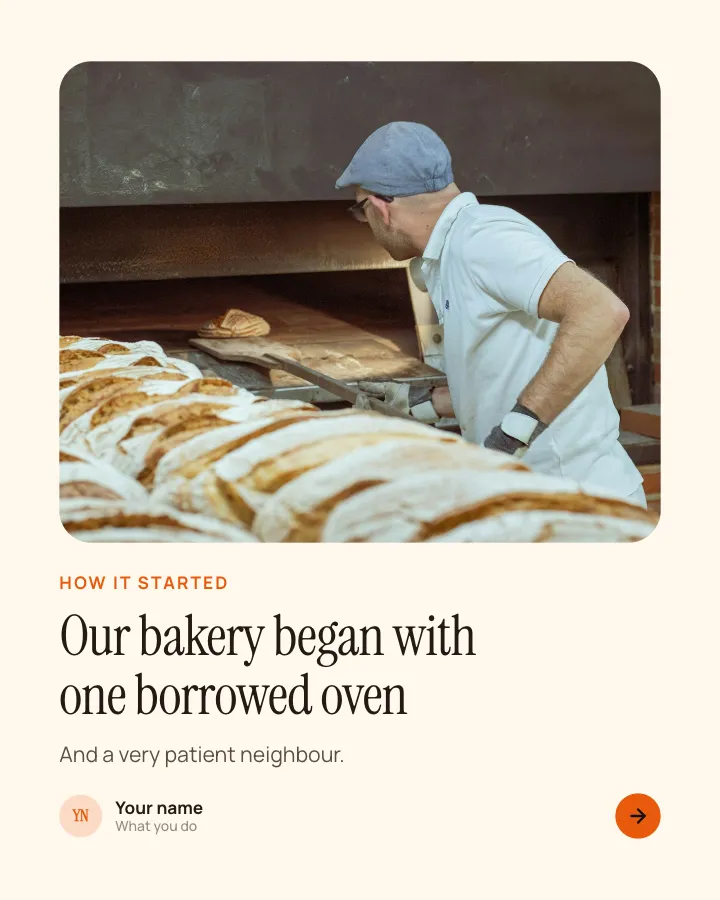
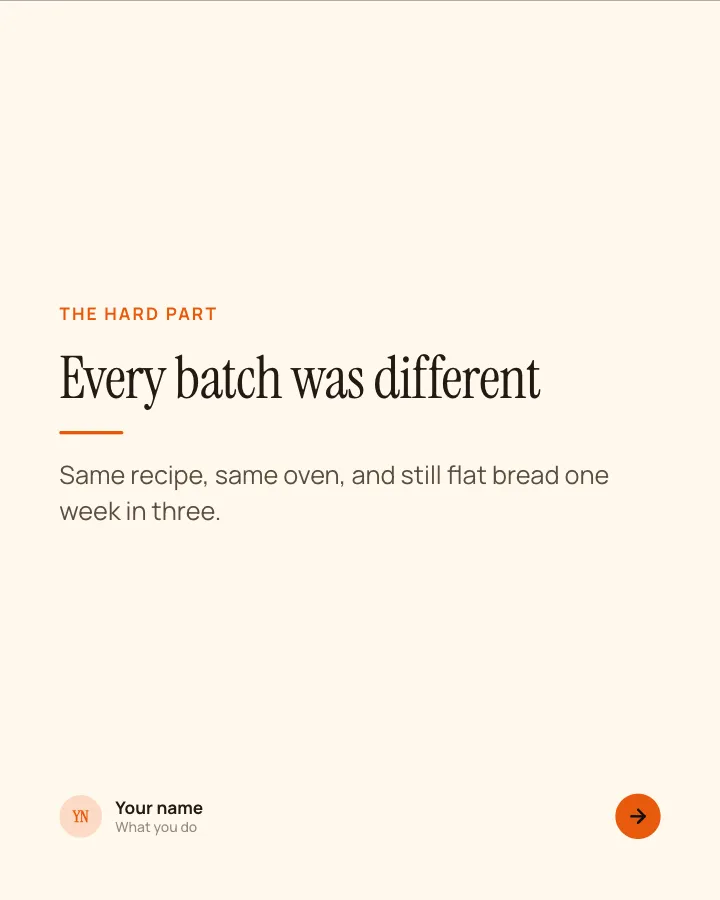
Origin story
7 slidesHow something began: the first scene, the hard part, the turn and what it taught you.
Earn trust
Business carousels: launches, sales and hiring
13. The product release
For a feature or update customers should know about. Lead with the problem, not the feature name.
- Cover: the change, shown on a device.
- Slide 2: the problem it solves.
- Slide 3: how to use it, in three steps.
- Closing: how to get it.
Template: Fresh release. For a full launch with features, a comparison and a price slide, use Launch day.
14. The objection answers
For sales teams and founders. The questions buyers ask before saying yes are the topics prospects care about most.
- Cover: the objection you hear most, written the way buyers say it.
- Slide 2: what the buyer says against what they usually mean.
- Slides 3–4: a reply to the price and timing objections.
- Slide 5: the rest, each with a one-line reply.
- Closing: offer the full script in exchange for a comment.
Template: Sales objections, answered. For customer questions rather than sales pushback, try Questions we get asked.
15. The hiring process
For employers who want better candidates: show the process up front, so people know what to expect.
- Cover: promise candidates the whole process.
- Slide 2: each step, how long it takes and why it exists.
- Slide 3: the question candidates ask most, answered honestly.
- Slide 4: what you look for and what you do not care about.
- Slide 5: one commitment on speed or feedback you will keep.
- Closing: where to see open roles.
Template: How we hire. To announce a single role, use Join the team.
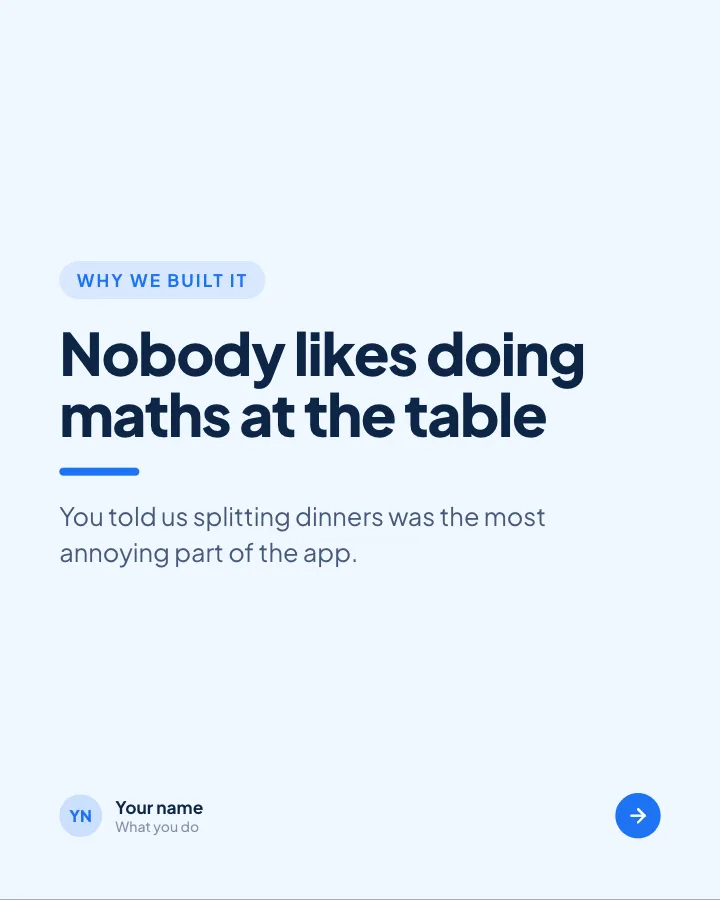
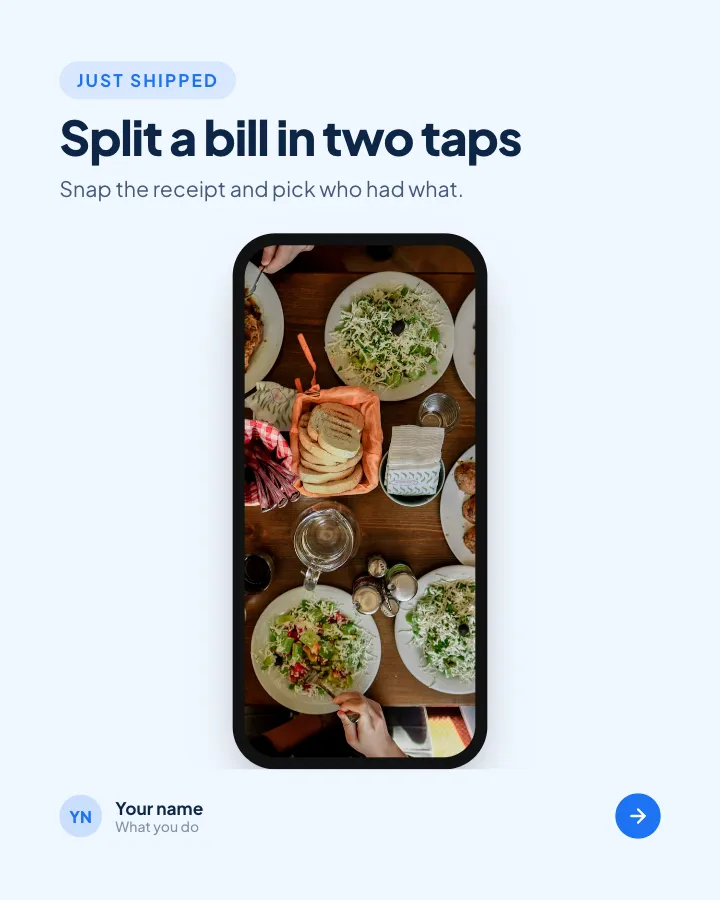
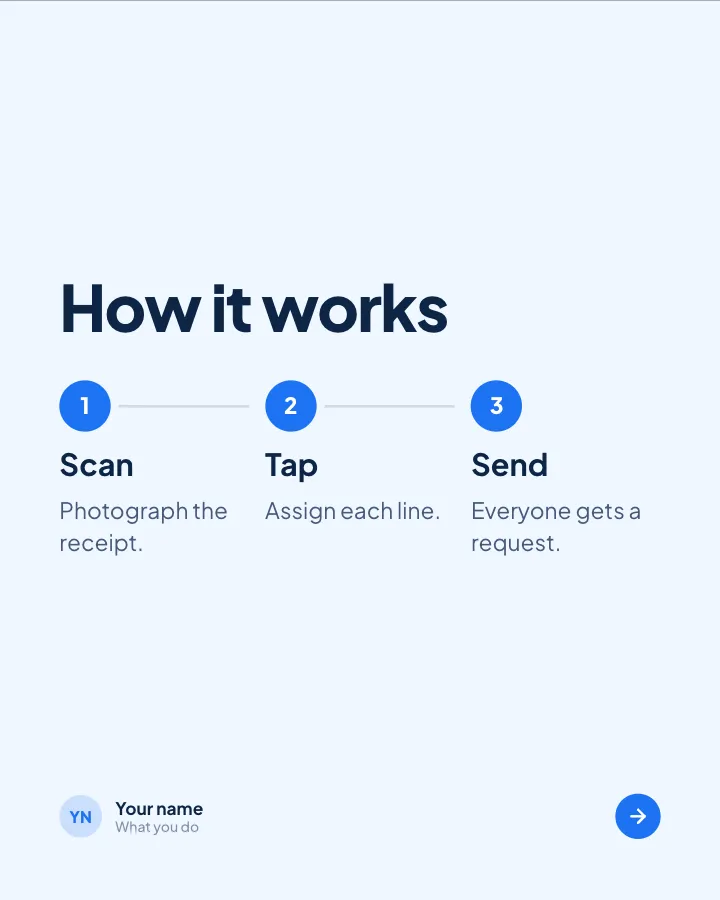
Fresh release
4 slidesA product change explained for customers: what it is, why it helps and how to start.
SellAnnounce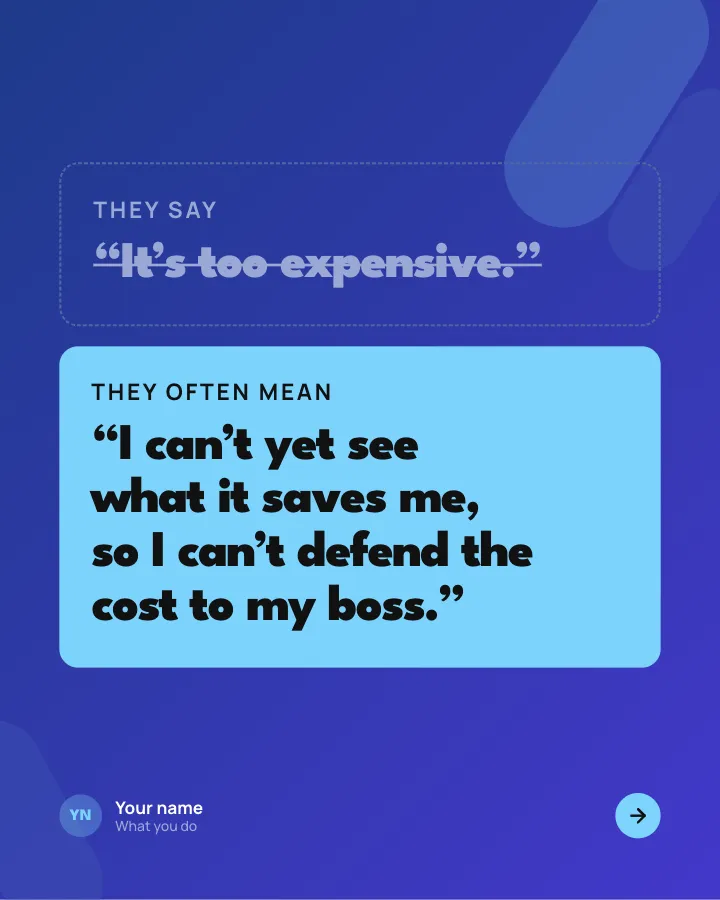
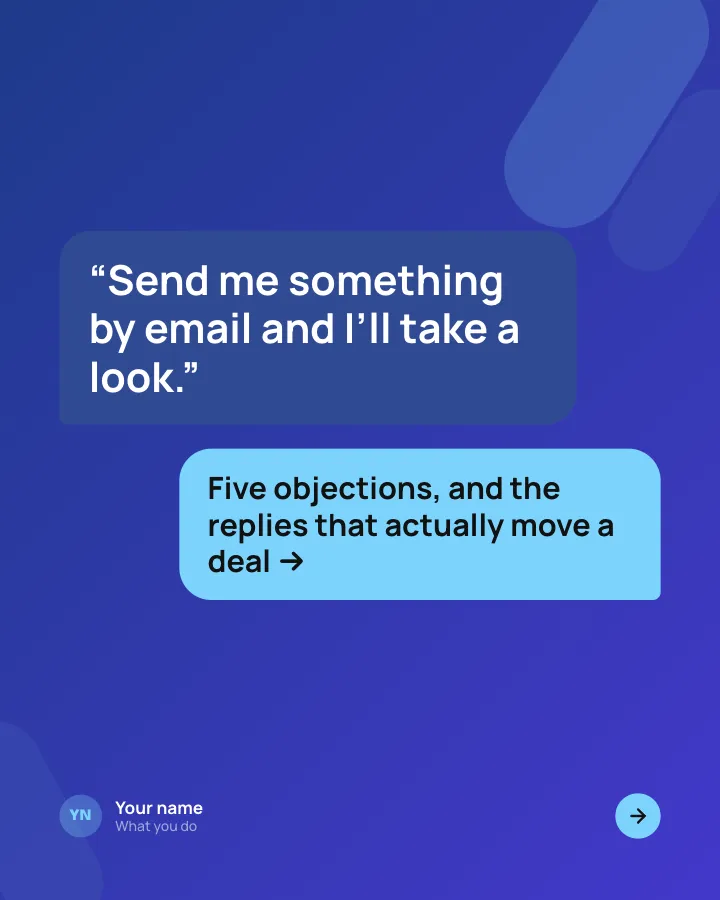
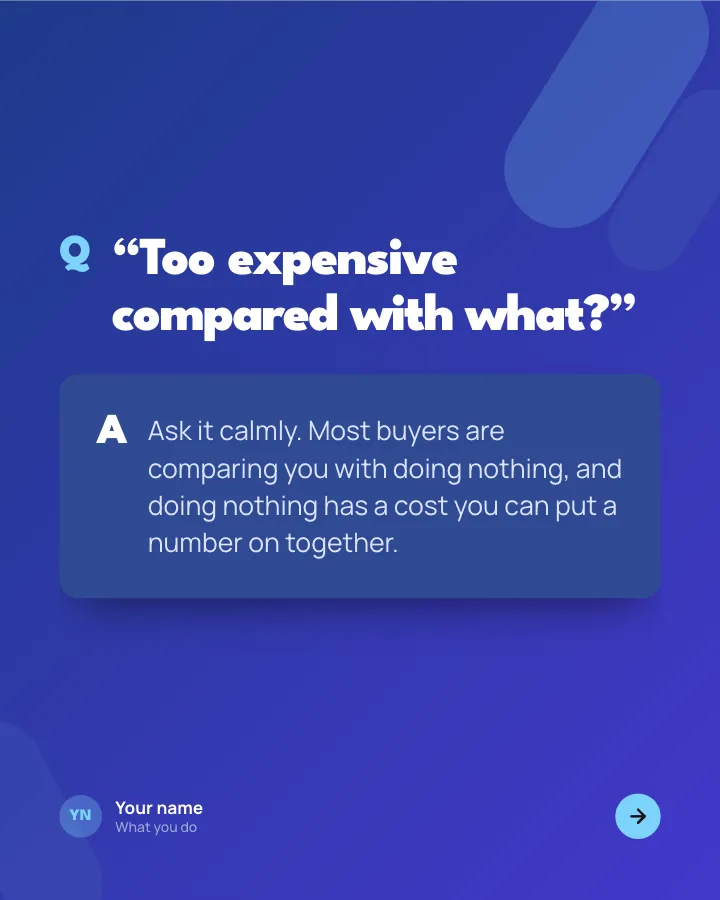
Sales objections, answered
7 slidesThe pushbacks buyers raise most, each with what they really mean and a reply that keeps the conversation going.
ExplainBe bookmarked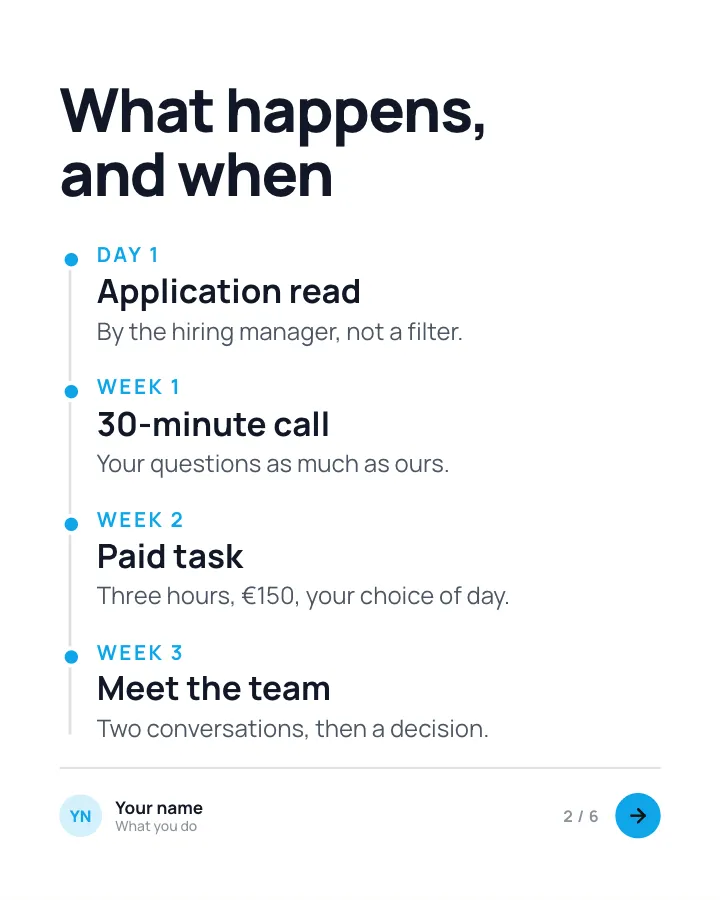
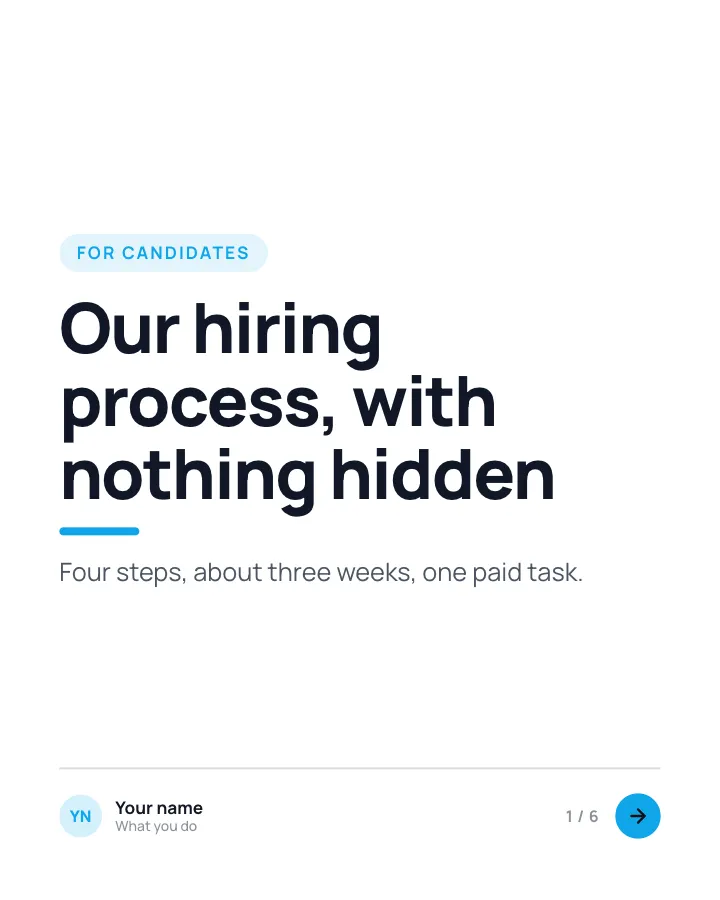
How we hire
6 slidesEvery step of your hiring process laid out for candidates: what happens, how long it takes and what you are looking for.
SellEarn trust
LinkedIn carousel ideas by goal
Not sure which structure to use? Start from what you want the post to do.
| Goal | Structures that fit | Templates |
|---|---|---|
| Get saved | Checklist, explainer, walkthrough | Keep-this guide, Glossary |
| Get comments | Strong opinion, myth check, lessons | Strong opinion, Belief check |
| Win clients | Results breakdown, teardown | Results breakdown, Cold email teardown |
| Build trust | Origin story, progress update | Origin story, Progress log |
| Announce something | Release, launch | Fresh release, Launch day |
| Hire | Hiring process, role announcement | How we hire, Join the team |
| Grow your profile | Profile and résumé advice | LinkedIn profile audit, Résumé line rewrites |
For more starting points, see our list of LinkedIn post ideas, with 50 ideas and the format that suits each.
How to turn an example into your own carousel
- Pick the structure that matches your goal from the table above.
- Write the slide headlines first, using your own topic. If the headlines alone tell the story, you are ready to design.
- Add one real detail per slide: a number, a name (with permission), a short example. That is what makes a template feel like yours.
- Write the cover last, once you know what the carousel actually delivers.
- Export a PDF and post it as a document. Our guide on how to post a carousel on LinkedIn covers each step.
Or skip the blank page: in Postora, pick any of these templates, give it your topic, a link or your notes, and it writes and designs the slides in that structure for you to edit. All templates are listed on the LinkedIn carousel templates page.
Skip the blank page. Give Postora a topic or a link and it plans, writes and designs the carousel for you. Start without an account.
Make a carouselFrequently asked questions
What is a good example of a LinkedIn carousel?
A step-by-step walkthrough is the easiest to get right: a cover with the result, one step per slide and a closing slide with next actions. Checklists, case studies and myth checks also work well.
How many slides should a LinkedIn carousel example have?
Most of the structures here run 4 to 8 slides. That is long enough to deliver something useful and short enough that most readers reach the end.
Where can I find LinkedIn carousel templates?
Postora has LinkedIn carousel templates for every structure in this guide, from walkthroughs and checklists to case studies and hiring posts. Each comes with a slide plan, and the free plan includes most of them.
Can I copy another creator’s carousel?
Copy the structure, not the content. Formats like “5 mistakes and their fixes” belong to everyone; someone’s words, design and examples do not. Use your own experience and numbers.
What are good LinkedIn carousel ideas for beginners?
Start with what you already explain to people: a process you follow, mistakes you see newcomers make, or lessons from a recent project. Those need no research and come with real examples.