
Instagram guide
How to make a carousel on Instagram, step by step
Updated · By the Postora team
To make a carousel on Instagram, tap +, choose Post, tap the select multiple icon and pick 2 to 20 photos or videos in the order you want. Tap Next to edit, add music, a caption, tags and a location, then tap Share. After posting you can still reorder slides, delete a slide or edit the caption, but you cannot add new slides.
Before you start: plan the carousel
Most weak carousels fail before anyone opens Instagram. Five minutes of planning fixes that.
- Decide what the carousel is for. Teach something, show something, or tell a story. One job per carousel.
- Write the cover line. It should promise something specific: “7 hikes under 10 km near Denver” beats “Hiking ideas”.
- List the slides. One point, step or photo per slide. Cut anything that repeats.
- Choose the last slide. A summary, a question for the comments, or one clear ask such as “Save this for your next trip”.
- Pick the shape. 4:5 (1080 × 1350) is the safe default; 3:4 (1080 × 1440) fits phone photos. See Instagram carousel size.
If you need topics, the Instagram carousel ideas guide has around forty, sorted for creators and businesses.
Design the slides
For a photo carousel, this step is mostly choosing and editing photos. For a designed carousel with text, keep these rules in mind:
- Same size for every slide. Instagram crops every slide to the shape of the first one.
- Big, short text. A headline and one or two lines per slide. People read on a phone, often with the sound off and half their attention elsewhere.
- Consistent layout. The same fonts, colors and margins on each slide, so the carousel reads as one piece.
- A reason to swipe. End slides mid-thought, number them (“3/8”), or use an arrow on the cover.
- Margins. Keep text about 80 to 100 px from the edges so the profile grid crop and on-screen icons never cover it.
You can do this in any design app, start from an Instagram carousel template, or let a carousel maker draft it. Postora’s studio takes a topic, a link or your notes and returns a planned, written and designed Instagram carousel at 4:5, 3:4, 1:1 or 9:16, which you then edit and export as PNG images.
Walkthrough
6 slidesA task broken into clear steps, one per slide, ending with the hint that makes it work.
ExplainBe bookmarked

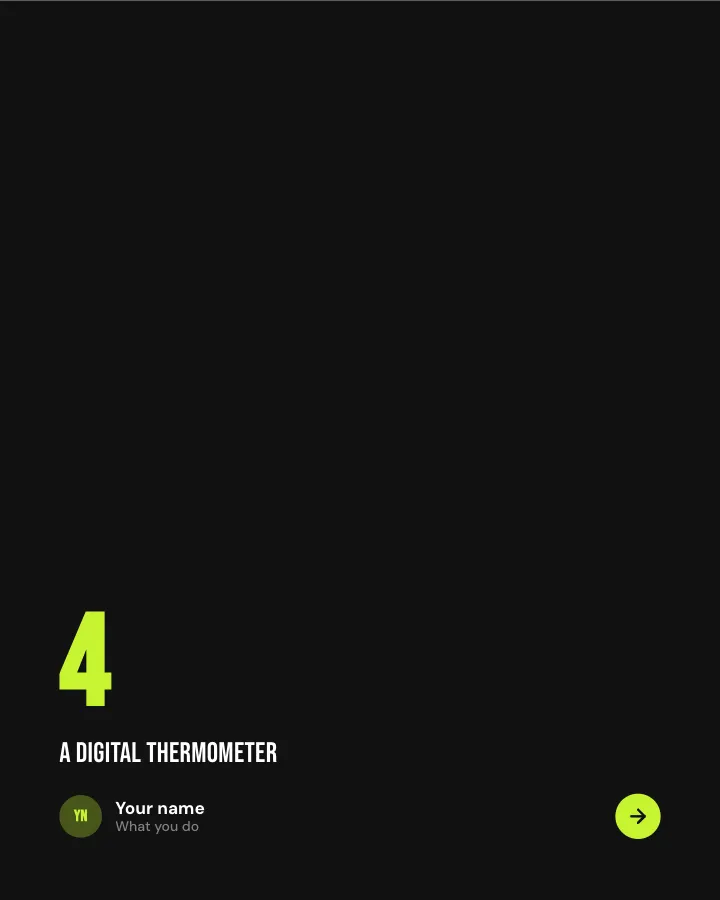
Top five
7 slidesA ranked list counting up to the best, with a reason for each place.
Make them smileBe bookmarked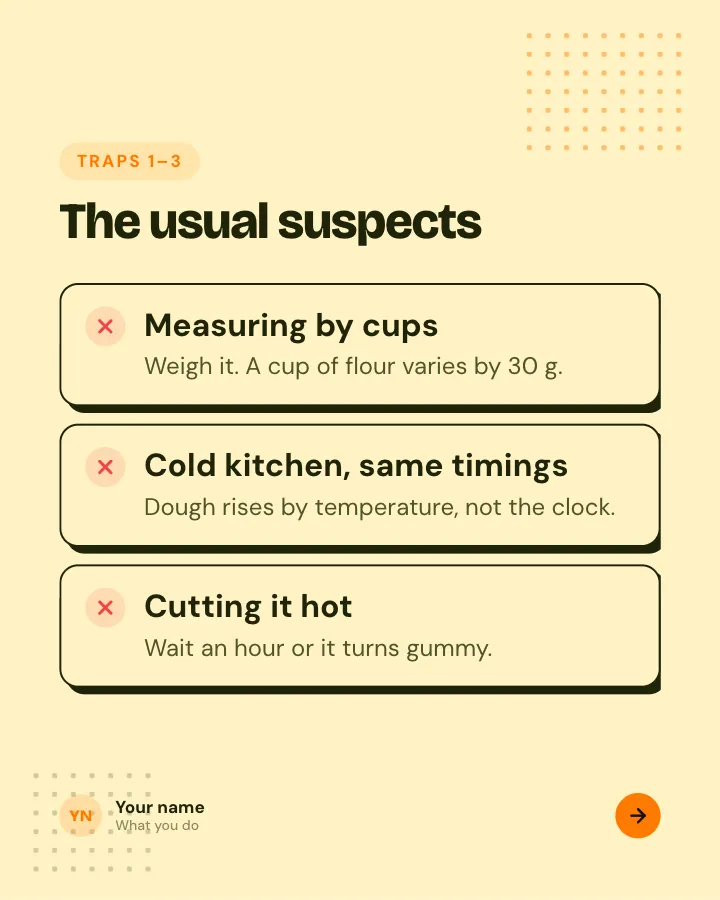

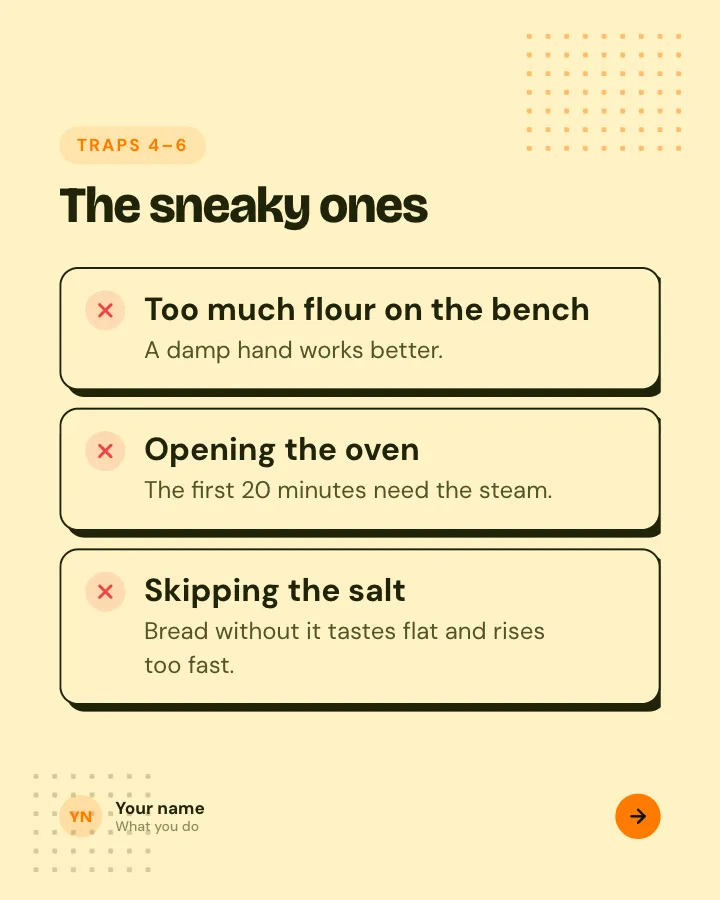
Beginner traps
5 slidesThe traps people fall into when they start, each with the simple fix.
ExplainBe bookmarked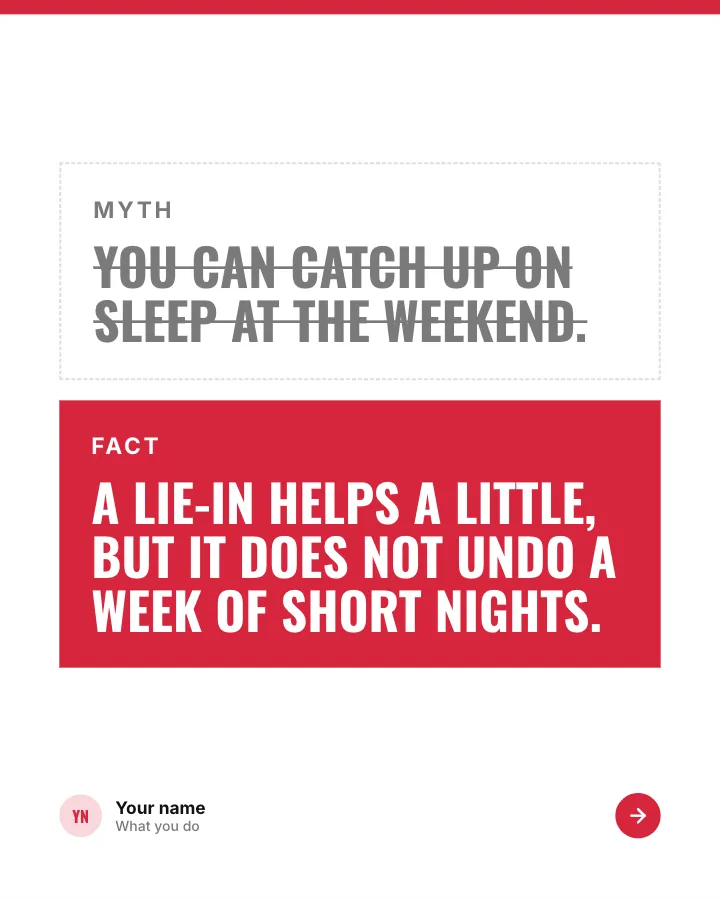
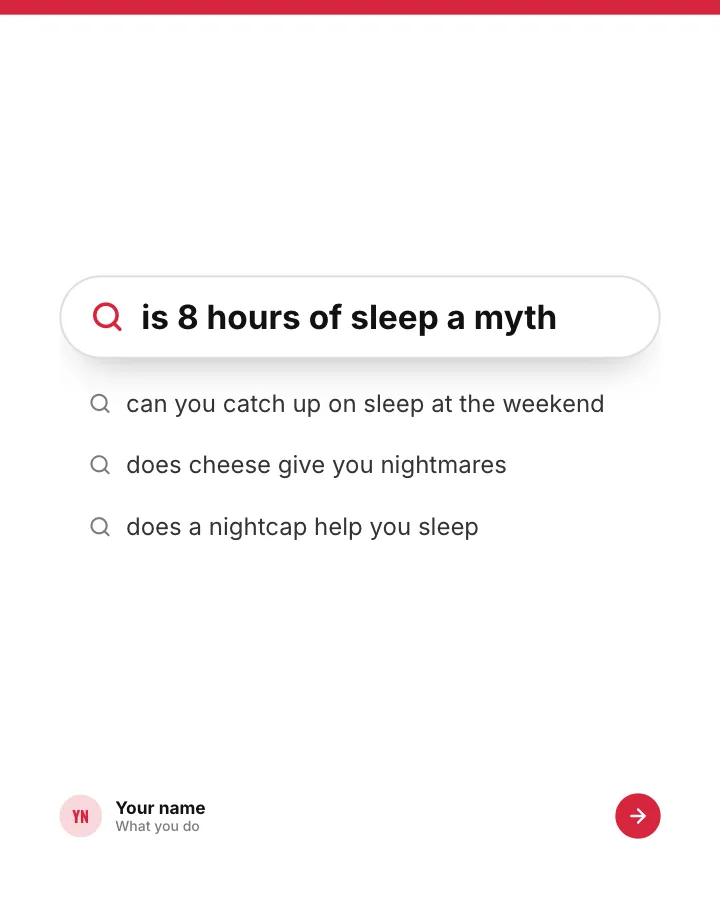
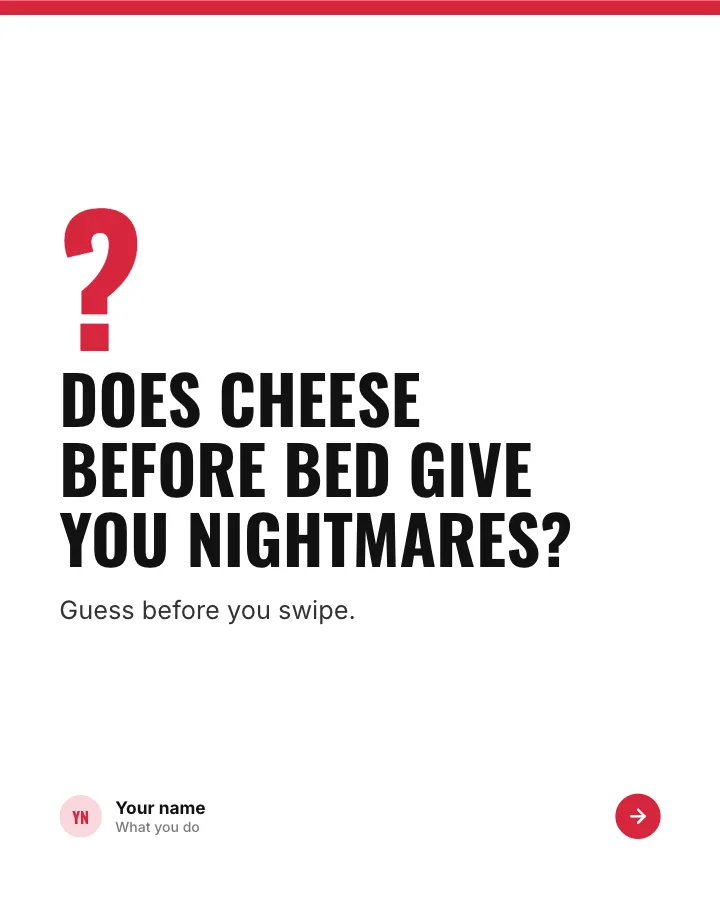
Myth or fact?
7 slidesThings people half-believe about a topic: readers guess first, then each one gets a verdict.
Spark repliesExplain
Skip the blank page. Give Postora a topic or a link and it plans, writes and designs the carousel for you. Start without an account.
Make a carouselSave the finished slides to your phone’s camera roll, named or ordered so they are easy to pick in sequence.
How to post a carousel on Instagram (app)
The exact icons move around between app versions, but the flow has been stable for a long time.
- Open Instagram and tap + (Create), then choose Post.
- Tap the select multiple icon (two stacked squares) near your gallery.
- Tap your photos or videos in the order you want them to appear. Each one shows a number. You can pick up to 20.
- Check the crop. The first item sets the shape for all of them; drag each photo inside the frame to fix what shows.
- Tap Next. Apply a filter to all slides, or tap a single slide to edit it on its own.
- Tap Next again. Write the caption, tag people, add a location and, if you want, music.
- Open Advanced settings to add alt text to each slide, hide like counts or turn off comments.
- Tap Share.
How to add music to an Instagram carousel
Instagram added music to photo carousels in 2023 (PetaPixel). The song plays while people swipe through the slides.
- Pick your photos and tap Next through the edit screen.
- On the screen with the caption, tap Add music.
- Search for a track or pick a suggestion, then choose the part of the song you want.
- Tap Done and share as normal.
Music is not available to every account or in every region; business accounts in particular may see a smaller library because of licensing. If the option is missing, update the app and check whether your account type has access.
How to make a carousel on Instagram from a computer
You can also post a carousel from instagram.com in a desktop browser.
- Click Create in the left menu and choose Post.
- Drag your files in or click Select from computer. Select several files at once, or use the gallery icon in the bottom corner to add more.
- Drag thumbnails to reorder, choose the crop, then click Next.
- Add filters, then the caption, location and alt text, and click Share.
Desktop is handy when your slides were designed on a computer, since there is no need to move files to a phone first.
Can you edit an Instagram carousel after posting?
Partly. Here is what changes after a carousel is live, as of November 2026.
| Change | Possible after posting? | How |
|---|---|---|
| Edit caption, tags, location, alt text | Yes | ••• menu → Edit |
| Reorder slides | Yes, since March 2026 | ••• → Edit, then long-press a slide and drag it |
| Delete one slide | Yes, if at least two remain | ••• → Edit, then the trash icon on that slide |
| Add a new slide | No | Post a new carousel instead |
| Replace a slide | No | Delete it, then post the new version separately |
| Change the grid preview crop | Yes | ••• → Adjust preview |
Reordering after publishing rolled out in March 2026 (Social Media Today). Adding new photos or videos to a live carousel is still not possible, so double-check you have every slide before you share.
Deleted a slide by mistake? Instagram keeps recently deleted items for a while under Your activity → Recently deleted, where you can restore them.
Write a caption that gets the swipe
One caption covers the whole carousel. Use it to back up the cover, not repeat it.
- First line: the reason to swipe. Only the start of the caption shows before “more”.
- Middle: context the slides do not have room for, such as who it is for or why it matters.
- End: one ask. “Save this for later” suits how-tos; a question suits opinions.
- Hashtags: Instagram now caps posts at five, so pick the most specific ones.
Full limits and the truncation point are in the Instagram caption character limit guide.
Common Instagram carousel mistakes
- Mixing shapes. Landscape and portrait photos in one carousel get cropped to the first one’s shape. Put them on same-size canvases if you need them whole.
- A cover that does not say what is inside. A pretty photo with no hook gets scrolled past.
- Too much text per slide. If it needs a paragraph, split it into two slides.
- Text near the edges. The profile grid crops 4:5 covers at the sides; keep titles centered.
- Filler slides. Twenty slots is a ceiling, not a target.
- Splitting photos by hand for a panorama. Small misalignments show at the seams. Use a splitter such as the free Instagram panorama splitter, or see the seamless Instagram carousel guide.
Making photo carousels on your phone? Postora Swipe has seamless Instagram designs for 1 to 20 photos.

Frequently asked questions
How many photos can I put in an Instagram carousel?
Up to 20 photos or videos in one carousel post, and at least two.
Can I add a photo to an Instagram carousel after posting?
No. You can reorder slides, delete a slide (as long as two remain) and edit the caption, but you cannot add new photos or videos to a live carousel.
How do I change the order of an Instagram carousel after posting?
Open the post, tap the three dots, tap Edit, then long-press a slide and drag it to its new spot. Instagram rolled this out in March 2026.
Why can’t I add music to my Instagram carousel?
Music depends on your app version, region and account type. Update the app first; some business accounts see a limited music library because of licensing.
Why are my carousel photos being cropped?
Instagram uses one shape for the whole carousel, taken from the first item. Later photos in a different shape are cropped to match.
Can I make an Instagram carousel on a computer?
Yes. On instagram.com, click Create, choose Post and select several files. You can reorder, crop, caption and share from the browser.