Quick chart image post template
One chart with its conclusion written as the title.
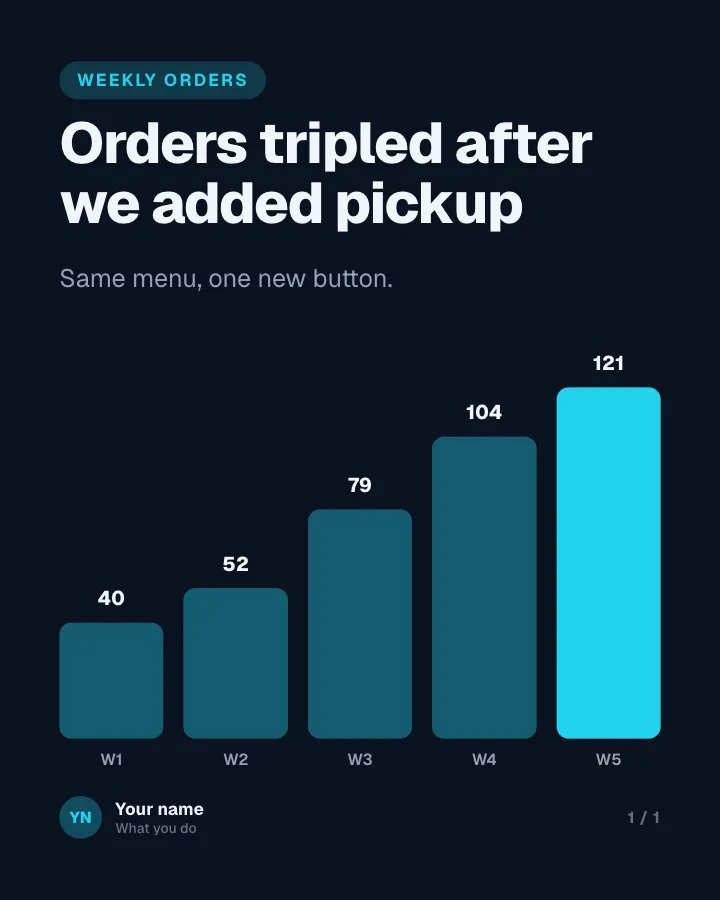
Image post
See it in the feed
How the example looks once it is posted. In the studio the preview uses your own slides, caption and profile.
Your name
What you do · 1h
One chart with its conclusion written as the title.
1/1When to use it
Reach for Quick chart when you want to teach your audience something they can use straight away. Its structure is flexible: your writer picks the shape that suits the topic. Give Postora your topic and it keeps the shape, writing every line about your subject in your voice.
What is on it
The chart and its conclusion.
In the example
Orders tripled after we added pickup
Weekly orders
Same menu, one new button.
Make it in Postora
Step 1
Say what it is about
Open Quick chart and type your topic, paste a link or add your notes.
Step 2
Check the plan
Postora keeps the template’s structure and writes each slide for your subject, in the voice you pick.
Step 3
Polish and download
Edit any word, change the theme or a layout, then export a PDF, images or a video.
Questions about Quick chart
Is the Quick chart template free?
Yes. Opening Quick chart and editing its example are free, no account needed. A free account adds 3 AI carousels a month and 5 downloads of the finished image post with a small Postora mark; VIP downloads without limits or the mark.
Which platforms is it made for?
LinkedIn (PDF document post, best at 4:5) and X (PNG images, best at 16:9). Postora sizes the image post for the network you pick and checks it against that network’s limits before you download it.
Can I turn it into a carousel?
Yes. Add slides in the editor and it becomes a carousel, keeping the same look. You can also start from one of the carousel templates.
Can I change the design?
Yes. It opens in the Control Room theme, and you can switch to any of 95 themes or your own brand kit in one click, swap the layout of any slide, and edit every word.